Smashpoint for Apple TV: Tennis Video Replay Comes to the Big Screen
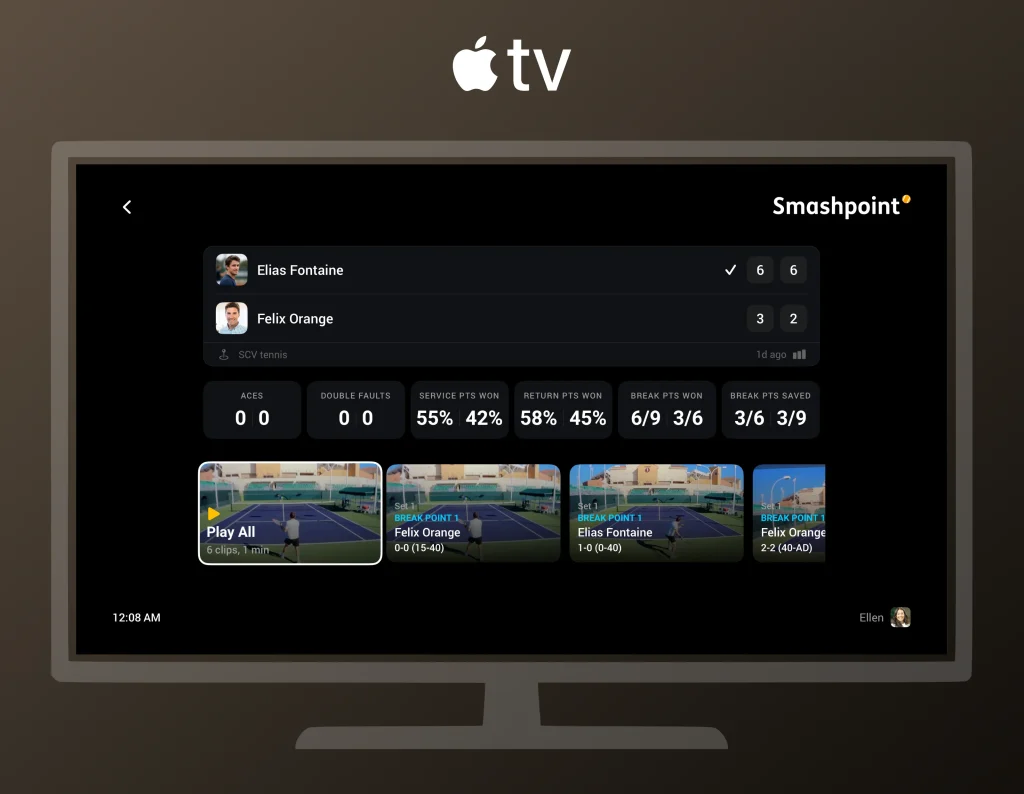
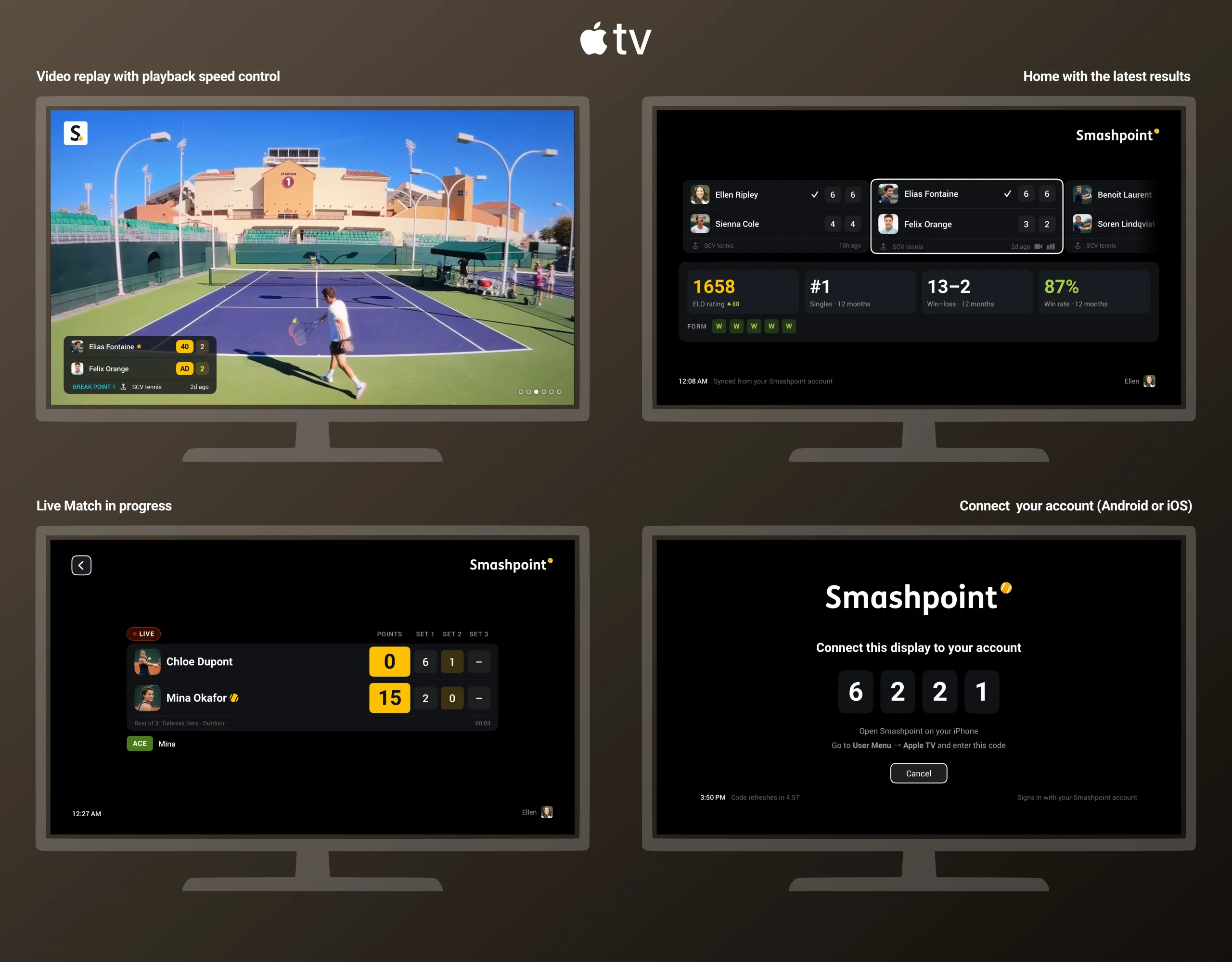
Smashpoint for Apple TV has been the place to follow a match live from the couch: the scoreboard, the serve indicator, the set-by-set breakdown, all updating point by point as someone tracks courtside. Today it gets the feature it was waiting for. Video Replay is now on Apple TV, so the break points, set points and match points recorded on a phone show up on your TV, ready to watch.
How it works
Recording happens on the phone. When someone is tracking a match live on iPhone or Android and a critical point comes up, Smashpoint prompts them to record the next point. They hold up the phone, tap record, enter the outcome as usual, and the clip is trimmed and saved against that exact point in the match. The tracker decides which moments trigger the prompt: break points, set points, match points, or any combination.
Watching happens on Apple TV. Open the match on your TV and the replays are right there next to the score. Pick a clip, see the context (which set, what score, who was serving), and watch the point. If you were following the match live, the replays land in the same view you already had open, so you don’t leave the scoreboard to find them.
Replays appear alongside the score on Apple TV, labeled with the set, the score and who was serving.
When replays show up
Clips appear on Apple TV as soon as they’ve uploaded from the phone, and the person recording controls when that happens with one setting in the app.
With Upload on Wi-Fi only (the default), clips wait on the phone until it reaches Wi-Fi, which for most people means they appear on the TV after the match, once the phone is back home or at the club. With Upload on mobile data, clips upload from the court as soon as they’re recorded, so someone watching live at home can see a set point replay minutes after it happened, while the match is still going on. Either way, the recorder can tap Upload now on any single clip to send it right away.
The choice is about data usage, not quality. Clips are the same on both settings; the only difference is when they leave the phone.
Private by default, like everything in Smashpoint
A replay is visible only to the person who recorded it until they choose to share it with the friends they’re connected with in Smashpoint. Sharing is per clip, and video is never shown on public match pages. That’s true on Apple TV too: the TV shows the clips the paired account is allowed to see, and nothing else. A parent who records their child’s matches sees every clip on the family TV. A connected coach sees the clips the parent chose to share. Nobody else sees any of it.
Getting set up
Smashpoint for Apple TV is free. Install it from the App Store on your Apple TV, open it, and enter the short code it shows into the Smashpoint app on your iPhone. From then on, everything that account can see in the app is on the TV: live matches, completed matches, season stats and now replays. One Apple TV can be paired to more than one account, so a household with two players or a clubhouse with a shared screen can switch between them.
To record, update Smashpoint on iPhone or Android to the latest version, start a live match in any point-tracking mode, and switch on Record Video on the Format step. The app will ask for camera and microphone permission the first time.


With this release, Smashpoint runs on iPhone, iPad, Apple Watch, Android, the web and Apple TV, and Smashpoint Cloud computes and stores all of it. Every match, rating, stat and replay lives in one place, so each device can do what it’s best at: the phone and watch track courtside, the web app gives you a desktop-class experience for digging into patterns and stats, and the TV is where the whole family watches. If you have an Apple TV in the house, this is the best way to relive a match.